Producing high-quality audio is crucial for various applications, from podcasts and music productions to multimedia projects. This guide provides a comprehensive overview of saving and exporting audio files, covering everything from understanding different formats to advanced export techniques. Mastering these skills will ensure your final audio files are optimized for their intended use, whether it’s streaming, sharing, or embedding within a larger project.
From basic file formats to advanced export settings, this guide will equip you with the knowledge and practical steps to handle your audio files efficiently. Learn how to choose the right format, optimize for quality and size, and organize your files for easy management.
Understanding Audio File Formats
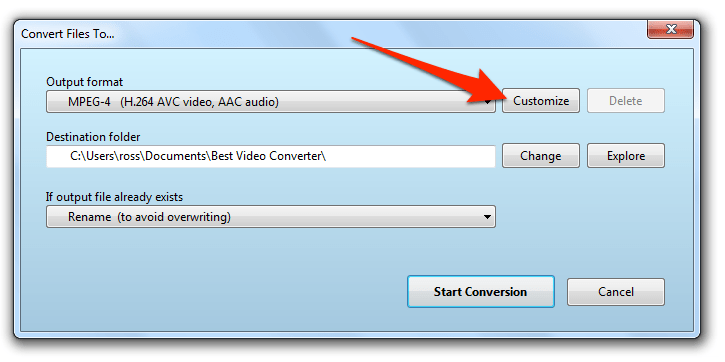
Audio file formats are crucial for storing and sharing audio recordings. Different formats employ varying degrees of compression, impacting both file size and audio quality. Understanding these differences is essential for selecting the appropriate format for specific needs, from high-quality recordings to compressed audio for streaming.
Common Audio File Formats
Various formats are available, each with unique characteristics. This section details several popular audio file formats, highlighting their strengths and weaknesses.
- MP3 (MPEG Audio Layer 3): MP3 is a widely used format known for its high compression rates. This results in smaller file sizes, making it ideal for storing and sharing audio files online. However, compression often leads to some loss of audio quality compared to uncompressed formats. MP3 is excellent for general audio consumption, like music streaming and podcasts, where a slight reduction in quality is acceptable for the convenience of smaller file sizes.
- WAV (Waveform Audio File Format): WAV is an uncompressed format that maintains the highest possible audio quality. The lack of compression results in large file sizes, making it unsuitable for distribution over the internet. However, WAV is a preferred format for professional audio editing and mastering due to its superior fidelity.
- AAC (Advanced Audio Coding): AAC is a common format, particularly popular for streaming audio. It balances compression with quality, offering a good compromise between file size and audio fidelity. It is often used in mobile devices and online streaming services.
- FLAC (Free Lossless Audio Codec): FLAC is a lossless format, meaning no audio data is discarded during compression. This results in high-quality audio and large file sizes. It’s a popular choice for audiophiles and those needing the highest possible quality, though file sizes are significantly larger than compressed formats.
Compression and Quality
Compression directly affects both file size and audio quality. Lossy compression discards some audio data to reduce file size, leading to a reduction in quality. Lossless compression, in contrast, preserves all audio data, maintaining the original quality but resulting in larger files.
Comparison of Audio File Formats
| Format | Compression | Quality | Use Cases |
|---|---|---|---|
| MP3 | Lossy | Good for general listening | Music streaming, podcasts, general audio consumption |
| WAV | Lossless | Highest quality | Professional audio editing, mastering, archiving |
| AAC | Lossy | Good balance of quality and size | Streaming services, mobile devices |
| FLAC | Lossless | Highest quality | Audio archiving, audiophile use cases, professional audio |
Saving Audio Files
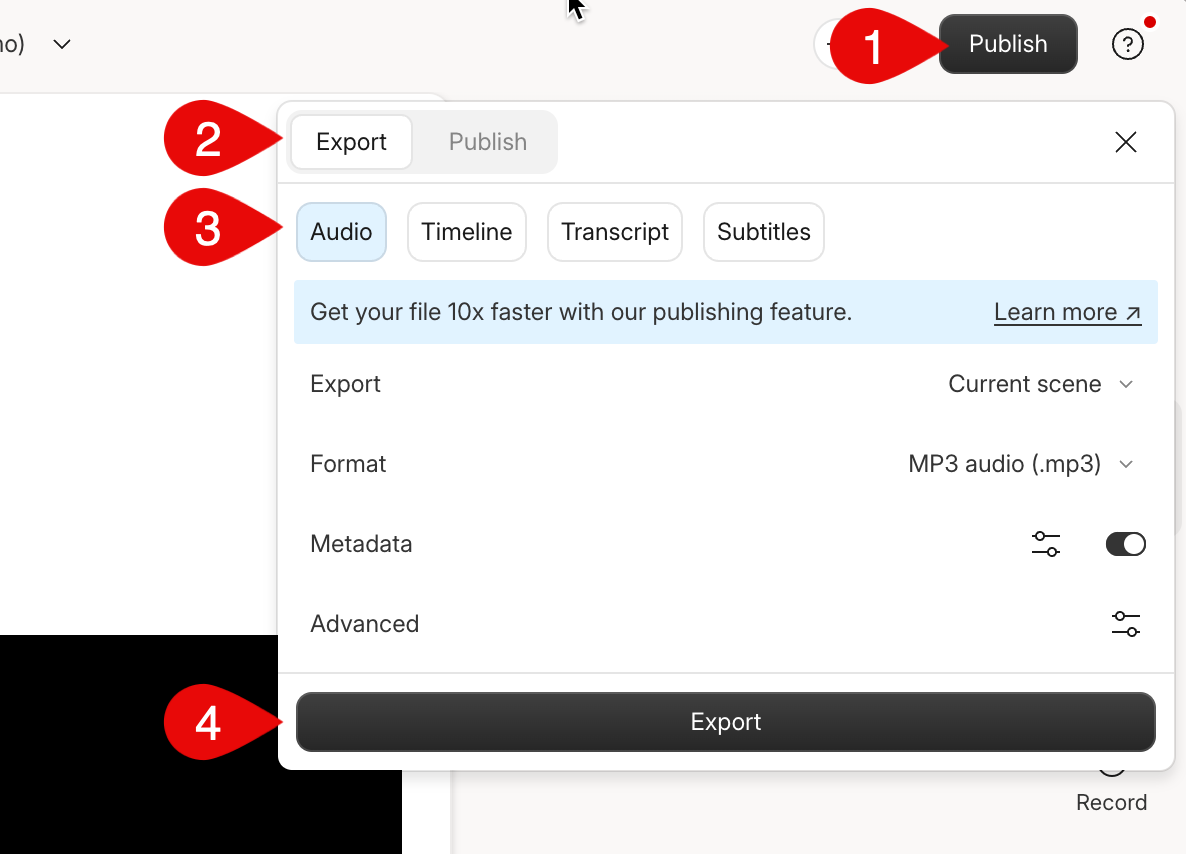
Saving your audio files correctly is crucial for preserving your work and ensuring compatibility with various applications and devices. Properly formatted and saved files minimize potential issues during playback or editing. Understanding the different saving options available in your audio recording software is key to achieving the desired output quality and file size.Careful consideration of the saving options, including file format, quality settings, and location, will ensure your final audio file meets your specific needs.
This section will detail the steps involved in saving audio files from common recording software like Audacity, GarageBand, and OBS Studio, emphasizing the importance of choosing appropriate saving options.
Saving Audio Files in Audacity
Audacity offers a range of options for saving your audio projects. Understanding these options is crucial for ensuring your final audio meets the requirements for your intended use.
- Open your audio project in Audacity.
- Select “File” from the menu bar.
- Choose “Export.”
- Select the desired file format (e.g., WAV, MP3, AIFF). WAV is generally preferred for lossless quality, while MP3 is a more common compressed format. Consider the trade-off between quality and file size.
- Choose the desired audio quality. Higher quality settings generally result in larger file sizes.
- Specify the file location where you want to save the audio file.
- Click “Save.”
Saving Audio Files in GarageBand
GarageBand provides a straightforward process for saving audio files. Selecting the appropriate format is important to ensure compatibility with various devices and applications.
- Open your audio project in GarageBand.
- Click the “File” menu.
- Select “Export.”
- Choose the desired file format (e.g., MP3, AIFF, WAV). Consider the quality versus size trade-off for your specific needs.
- Select the desired audio quality. Higher quality generally leads to larger file sizes.
- Specify the file location.
- Click “Export.” The file will be saved to the designated location.
Saving Audio Files in OBS Studio
OBS Studio, primarily used for live streaming, also allows saving recorded audio. This feature is useful for archiving recordings or further editing.
- Open your OBS Studio project.
- Locate the “File” menu.
- Select “Save As.”
- Choose the desired file format (e.g., WAV, MP3). WAV provides higher quality but larger files.
- Adjust audio quality settings as needed.
- Specify the file location for saving.
- Click “Save.” The saved audio file will be available at the designated location.
Exporting Audio Files
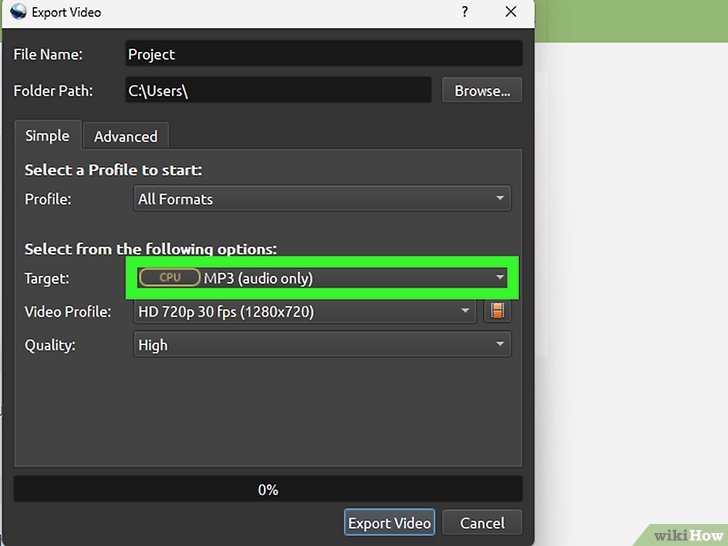
Exporting your audio file is the final step in the audio editing process. This crucial stage allows you to save your work in a format suitable for sharing, distribution, or playback on various devices. Proper export settings are essential to maintain the quality and integrity of your audio. This section will guide you through the process of exporting audio files, exploring different options and their implications.Careful consideration of export settings is paramount.
Choosing the right parameters ensures that your final audio file accurately reflects the intended quality and playback experience. Incorrect settings can lead to poor audio quality, large file sizes, or compatibility issues with various playback platforms.
Export Options within Audio Editing Software
Different audio editing software packages offer various export options. These options usually include a range of parameters that allow you to fine-tune the output file to your specific needs. Common options include different audio formats (e.g., WAV, MP3, AAC, FLAC), bitrates, sample rates, and channel configurations.
File Export Options and Settings
A comprehensive understanding of file export options is vital. These settings influence the final quality, file size, and compatibility of the exported audio file. Common export options include:
- Format: Different formats cater to varying needs. WAV, for instance, preserves the highest quality but results in large file sizes. MP3, on the other hand, compresses audio, reducing file size but potentially compromising quality. Other formats like AAC and FLAC offer trade-offs between quality and file size. The choice depends on the intended use case.
- Bitrate: This setting dictates the number of bits used to encode each sample. A higher bitrate typically translates to better audio quality but increases the file size. For example, a higher bitrate MP3 will produce better audio quality compared to a lower bitrate MP3. Common MP3 bitrates include 128 kbps, 192 kbps, 256 kbps, and 320 kbps. The ideal bitrate depends on the desired balance between quality and file size.
- Sample Rate: This parameter defines the frequency at which audio samples are taken. A higher sample rate (e.g., 44.1 kHz, 48 kHz) captures more detail, resulting in a richer sound. Lower sample rates (e.g., 22.05 kHz) compromise detail and may be suitable for situations where file size is a concern. The sample rate should align with the intended use and playback systems.
- Channel Configuration: This setting determines the number of audio channels (mono, stereo, 5.1 surround sound, etc.). Mono audio has a single channel, while stereo audio has two channels for left and right sound. Surround sound configurations provide a wider, more immersive listening experience.
Export Settings Table
The following table provides a summary of various export settings, their implications on file size and quality, and their suitability for different situations.
| Setting | Implications | Suitability |
|---|---|---|
| Format: WAV | High quality, large file size | Archival purposes, professional audio editing |
| Format: MP3 (128 kbps) | Moderate quality, relatively small file size | Sharing online, general listening |
| Format: MP3 (320 kbps) | High quality, larger file size | Audiophile listening, preserving high fidelity |
| Sample Rate: 44.1 kHz | High quality, larger file size | CD-quality audio, professional use |
| Sample Rate: 22.05 kHz | Lower quality, smaller file size | Streaming audio, mobile devices |
| Bitrate: 192 kbps | Good quality, moderate file size | Balance between quality and file size |
File Management and Location

Proper file management is crucial for any audio project, ensuring easy access, efficient organization, and preventing loss of valuable recordings. A well-structured system streamlines workflow, enabling seamless transitions between recording sessions, editing, and final delivery. This meticulous approach contributes significantly to the overall success and timeliness of a project.Effective organization of audio files is vital for efficient project management.
This includes not only the physical location of the files but also the methods employed for naming and categorizing them. Consistent naming conventions and clear folder structures provide a roadmap for navigating the project and locating specific recordings quickly and accurately.
Importance of Organizing Audio Files
A well-organized system for audio files ensures easy retrieval of specific recordings. This is particularly important for projects with many audio files, as locating a particular sound effect or piece of dialogue without a clear system can be time-consuming and frustrating. Effective organization contributes to a streamlined workflow, allowing producers and editors to focus on the creative aspects of the project without being bogged down by searching for files.
Naming Conventions for Audio Files
Consistent naming conventions are essential for maintaining order and searchability within a large audio project. Clear and descriptive names help in identifying the content of the file quickly and easily. Use a standardized format that includes relevant information such as date, time, project name, and a brief description of the recording’s content.
Best Practices for Storing and Managing Large Collections of Audio Files
Storing and managing large collections of audio files demands careful planning and a methodical approach. Employing a hierarchical folder structure, using descriptive file names, and backing up files regularly are vital to maintaining a comprehensive and organized system. Using appropriate storage media, such as external hard drives or cloud services, ensures long-term preservation of recordings.
Folder Structure for a Multi-File Project
A well-organized folder structure is a fundamental aspect of managing audio files efficiently. A hierarchical approach, mimicking a tree-like structure, makes it easier to locate specific files. This example illustrates a possible structure for a project involving multiple audio recordings:
- Project Folder (e.g., “Sound Design for Documentary – 2024”)
- Source Audio (raw recordings)
- Interviews (separate folders for each interviewee)
- JohnSmith_Interview_20240315_1400.wav
- JaneDoe_Interview_20240315_1530.wav
- Sound Effects (separate folders for different categories)
- Ambience
- Footsteps
- Edited Audio (processed recordings)
- Mastered Audio (final output)
- Documentary_FinalMix.wav
- Backup (regular backups)
This structured approach enables easy navigation and retrieval of audio files within the project.
Quality Considerations
Preserving the fidelity of your audio recordings during the saving and exporting process is paramount. Factors like bitrate and sample rate, along with the chosen compression method, significantly impact the final sound quality and file size. Understanding these elements is crucial for achieving the desired audio quality in your final product.
Factors Influencing Audio Quality
Several factors influence the quality of the audio file during the saving and exporting process. These factors include the bitrate, sample rate, and the type of compression used. A higher bitrate and sample rate generally result in better audio quality, but also larger file sizes. Conversely, lossy compression, while reducing file size, can lead to a decrease in audio fidelity.
Bitrate and Sample Rate
Bitrate and sample rate are fundamental aspects that directly affect the audio quality. The bitrate determines the amount of data used to represent each sample, while the sample rate indicates how frequently the audio signal is measured. Higher bitrates and sample rates typically lead to a more accurate representation of the original audio, resulting in a higher quality sound.
Bitrate
Bitrate refers to the number of bits used per second to encode audio data. A higher bitrate results in a larger file size but typically provides a better representation of the original audio signal, preserving more detail and reducing distortion. Common bitrate settings for audio files vary, affecting both the sound quality and the file size. A higher bitrate translates to a more accurate representation of the sound, potentially leading to a richer, more detailed listening experience.
- A bitrate of 128 kbps is often used for audio streaming and can provide a decent listening experience, though it might exhibit some slight loss of quality compared to higher bitrates. For example, a podcast or online music stream might use this bitrate.
- 320 kbps is frequently used for music files and generally delivers a good compromise between audio quality and file size. Many music downloads and streaming services use this setting for their higher quality audio.
- Lossless formats, such as FLAC, typically have bitrates that are higher than lossy formats, providing a higher fidelity audio reproduction with no loss of data.
Sample Rate
The sample rate dictates how frequently the audio signal is measured and converted into digital data. A higher sample rate, measured in Hertz (Hz), captures more information from the original audio signal, leading to a more accurate representation and a smoother, more natural sound. Common sample rates include 44.1 kHz, 48 kHz, and 96 kHz.
- 44.1 kHz is a standard sample rate for audio CDs and is widely compatible with various audio devices. This rate often provides a balanced representation of the audio, sufficient for many listening experiences.
- Higher sample rates like 96 kHz offer a more detailed representation of the audio signal, potentially revealing subtle nuances that might be lost at lower rates. They are frequently used in professional audio applications.
Lossy and Lossless Compression
Compression techniques significantly impact file size and audio quality. Lossy compression discards some audio data to reduce file size, potentially leading to a noticeable reduction in audio quality. Lossless compression, on the other hand, maintains all the original audio data, resulting in a larger file size but preserving the original sound quality.
Comparison of Bitrate Settings
Different bitrate settings have varying impacts on audio quality and file size. Lower bitrates lead to smaller file sizes but may compromise the fidelity of the audio, potentially introducing distortion or a loss of detail. Higher bitrates yield better audio quality but result in larger file sizes.
| Bitrate (kbps) | Audio Quality | File Size | Typical Use Cases |
|---|---|---|---|
| 128 | Good for streaming, but may exhibit slight distortion | Small | Audio streaming, podcasts |
| 192 | Better than 128, but still some loss | Medium | Music downloads |
| 320 | Good compromise between quality and size | Large | Music files, higher quality audio |
| Lossless (e.g., FLAC) | Highest quality, no data loss | Largest | Professional audio, archiving |
Troubleshooting Common Issues
Ensuring a smooth audio workflow involves understanding potential pitfalls and how to address them effectively. This section provides practical steps to resolve common problems encountered during audio saving and exporting, from corrupted files to incompatibility issues and file size limitations. These troubleshooting steps will equip you with the tools to confidently manage your audio files.Addressing audio export issues often involves a systematic approach.
This includes understanding the nature of the problem, examining the relevant software settings, and employing appropriate troubleshooting techniques. By diligently following the steps Artikeld below, you can identify and rectify the root cause of the problem.
Corrupted Audio Files
Identifying and resolving corrupted audio files is crucial for maintaining data integrity. Corrupted files can arise from various sources, including file transfer errors, system crashes, or faulty hardware. Recognizing the symptoms of corruption is the first step in restoring the file’s integrity.
- Symptoms of Corruption: The most common symptoms include playback errors, unusual audio artifacts, or the inability to open the file. A corrupted file may not load properly in your audio editing software, or the playback might exhibit glitches, crackles, or pops.
- Troubleshooting Steps: If possible, try re-saving the file. If the problem persists, check the file integrity using specialized audio file repair software. If you’ve backed up the file, restoring from a backup is an option.
Incompatible File Formats
Understanding the compatibility of your audio file format with your chosen software and playback devices is crucial. Incompatibility can manifest as playback issues or the inability to import or export files.
- Identifying Incompatible Formats: Check the supported formats in your audio editing software and the playback device specifications. If the format is not compatible, conversion to a supported format is necessary. Examine the file extensions, looking for common formats like WAV, MP3, or AAC.
- Troubleshooting Steps: Employ a reliable audio converter to change the file format. Refer to the software’s documentation for the supported file formats. If the playback device has format limitations, convert the audio to a compatible format for the device. Consult the device’s user manual for supported audio formats.
File Size Limitations
File size limitations can restrict your ability to share or store audio files. Large files might not be compatible with specific platforms or devices.
- Understanding File Size Limits: Examine the storage capacity and limitations of the platform or device where you intend to save or share the audio file. Consider using file compression to reduce the size of the audio file while maintaining acceptable quality.
- Troubleshooting Steps: Employ audio compression tools to reduce the file size without significant loss of quality. Consider optimizing the audio encoding parameters to reduce file size. Evaluate the necessity of high-resolution audio for your use case. If a lower quality setting is acceptable, explore lower bitrate or sampling rate options. Analyze the current file size and its impact on the intended use case.
Export Issues with Specific Software
Troubleshooting export issues often requires understanding the software’s specific error messages and potential solutions. Software-specific troubleshooting often involves understanding the program’s error messages and adjusting the export settings.
| Software Program | Potential Error Message | Troubleshooting Steps |
|---|---|---|
| Audacity | “Export failed” | Check file path, file type, and software settings. Ensure enough storage space. Restart the software. |
| Adobe Audition | “Unable to export file” | Verify export settings, check software updates, and ensure the file format is supported. Check file path availability. |
Advanced Export Techniques
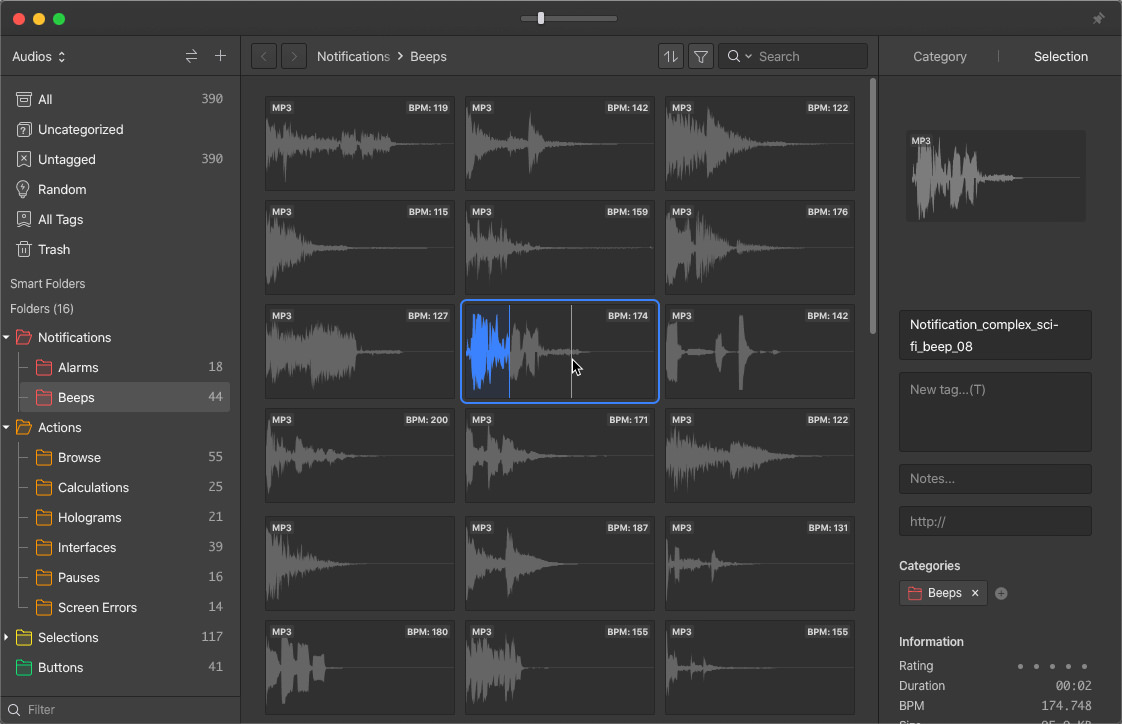
Beyond the basic export settings, advanced techniques allow for greater control over the final audio file, optimizing it for specific platforms and devices. Understanding these options can significantly enhance the quality and usability of your audio productions. Careful consideration of export parameters is crucial for maintaining consistent audio quality across different platforms.Advanced export settings often provide options to fine-tune the encoding process, enabling you to tailor the output to specific needs.
This includes optimizing for file size, bitrate, sample rate, and channel configuration. These choices can dramatically impact the final quality and playback experience for the listener.
Optimizing for Specific Platforms
Careful selection of export settings can significantly enhance the audio experience on different platforms. Streaming services often have specific requirements for audio formats and bitrates. Podcast platforms may have their own preferences. Understanding these specifications allows you to ensure compatibility and optimal playback quality.
Batch Processing for Multiple Files
Exporting multiple audio files simultaneously can be significantly accelerated through batch processing techniques. These techniques allow for automated processing of numerous files with consistent settings, eliminating the need for manual intervention for each file. This is particularly useful when working with large projects or when preparing multiple files for a single platform. Modern audio editing software usually provides built-in batch processing capabilities.
Specific Export Setting Example: Podcast Optimization
“For exporting audio files intended for podcast distribution, consider selecting a format like MP3 or AAC. Adjust the bitrate to a value that balances file size with quality. A higher bitrate will generally yield a better sound quality but increase the file size. Choosing a bitrate suitable for the intended platform is crucial. For example, a 128 kbps bitrate is often acceptable for podcasting, providing a reasonable balance between file size and audio quality. A higher bitrate might be beneficial for higher-quality recordings. Additionally, ensure the sample rate aligns with the platform’s expectations. A 44.1 kHz sample rate is a standard for many platforms and is a good starting point. Consider the platform-specific guidelines when exporting audio files for podcasts, which might involve adjustments to channel configuration and metadata.”
Closure
In conclusion, this guide has walked you through the essential steps for saving and exporting audio files effectively. By understanding audio file formats, mastering saving and exporting procedures, and implementing proper file management techniques, you can ensure that your audio projects are of the highest quality and meet the specific needs of your audience. We hope this comprehensive guide empowers you to confidently manage your audio files from start to finish.